Lockdown mode Android: a practical security guide

Lockdown mode on Android forces your device to accept only a PIN, password, or pattern to unlock. Biometrics are suspended, lock-screen notifications disappear, and Smart Lock stops working until you enter your passcode. According to Android Police, the feature was introduced in Android 9 Pie specifically to counter biometric spoofing and coerced fingerprint access. Google, GrapheneOS, and Nordsecure all treat it as a first line of defence in high-risk moments.
What changes the instant you activate it:
- Fingerprint, face, and iris unlock are disabled
- Lock-screen notifications are hidden from view
- Extend Unlock (formerly Smart Lock) and voice assistant access are blocked
To activate it right now:
- Go to Settings → Display → Lock screen preferences (or search “lockdown” in Settings)
- Toggle on Show lockdown option
- Long-press the power button and tap Lockdown
Table of Contents
- What exactly does Lockdown mode change on your device?
- How to enable and activate Lockdown mode on your phone
- How to get your phone out of Lockdown mode
- What Lockdown mode does not protect against
- When should you actually use Lockdown mode?
- Which Android versions and devices support Lockdown?
- When Lockdown is not enough: persistent device hardening
- Key takeaways
- Why practising Lockdown mode matters more than most people realise
- Nordsecure: pre-hardened phones for persistent privacy
- Useful sources
- FAQ
What exactly does Lockdown mode change on your device?
Lockdown mode is precise in what it touches. It does not reformat your phone or encrypt new data. It changes the authentication layer and strips back the lock screen to its most secure state.
Features disabled while Lockdown is active:
- Biometric unlock (fingerprint, face recognition, iris scan)
- Voice assistant activation from the lock screen, blocking voice-spoofing attacks
- Extend Unlock and Smart Lock trusted-place or trusted-device shortcuts
- Lock-screen notification content (notifications still arrive, but content is hidden)
- On Android 15 devices with updated OEM USB hardware support, USB data access is also blocked while charging continues normally
Consider a scenario where someone grabs your phone and presses your sleeping finger to the sensor. Lockdown stops that cold. Or imagine a situation where a voice command could trigger an action on your lock screen. That avenue closes too.
Lockdown does not protect you if someone already knows your passcode. It does not add encryption beyond what your device already has, and it does not stop device-level software exploits. Think of it as a bolt on the front door, not a vault.
What Lockdown does NOT do:
- Protect against a known passcode
- Prevent exploits targeting the OS or firmware
- Guarantee USB data blocking unless your OEM has updated its USB hardware abstraction layer
How to enable and activate Lockdown mode on your phone
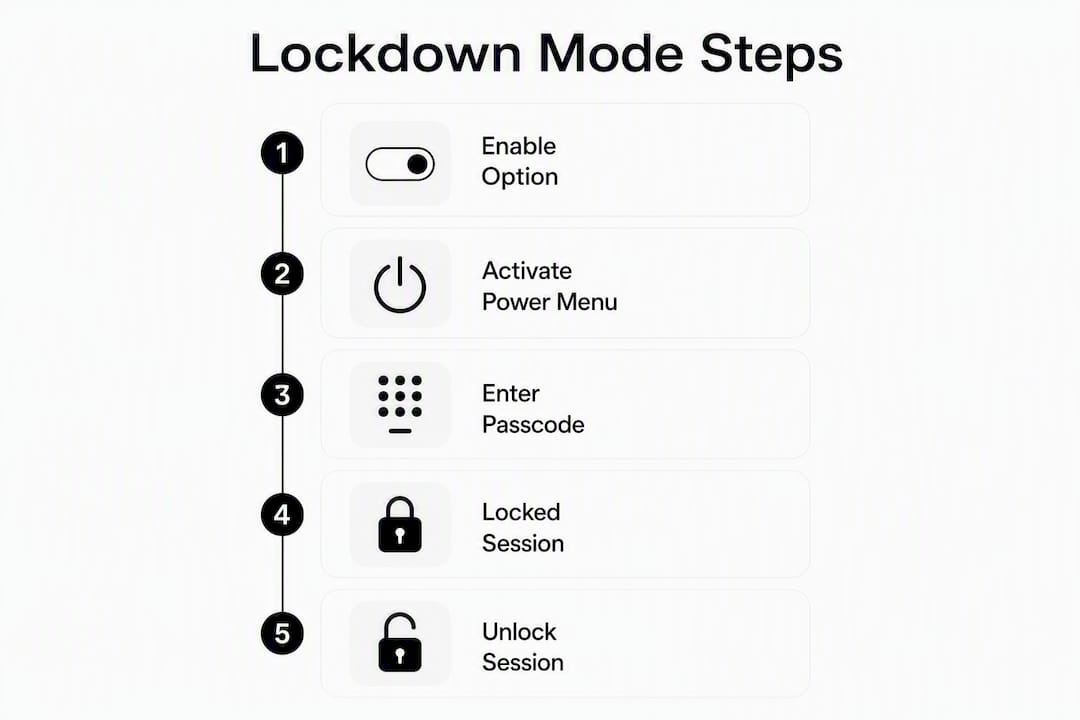
The steps below cover the standard Android process, followed by notes for the most common device families in the UK.
Standard process:
- Open Settings
- Tap Display (or Lock screen, depending on your Android version)
- Select Lock screen preferences or Advanced lock screen display
- Toggle on Show lockdown option
- To activate: long-press the power button (or power + volume up on some devices)
- Tap Lockdown in the power menu
Google’s official support page documents the exact Settings navigation and confirms how Extend Unlock interacts with the feature.
OEM variations to be aware of:
- Pixel phones: On newer Android versions the Lockdown option often appears in the power menu by default. If it does not, follow the standard steps above.
- Samsung devices: The toggle may sit under Settings → Biometrics and security rather than the display or lock screen menu. Use the Settings search bar if you cannot locate it.
- Other Android skins (OnePlus, Xiaomi, Oppo, etc.): Search “lockdown” or “show lockdown option” directly in Settings. Some manufacturers omit the feature or rename it.
Pro Tip: Once you have enabled the option, run a quick test. Lock your phone, activate Lockdown from the power menu, then try to unlock with your fingerprint. Confirm that biometrics are rejected and that notification content is hidden. Doing this once means you will not hesitate in a real situation.

How to get your phone out of Lockdown mode
Exiting is straightforward, and the process restores your phone to its normal state.
- Wake the screen (press the power button or lift to wake)
- Enter your PIN, password, or pattern at the lock screen
- Your phone unlocks and Lockdown clears automatically
That is all. Lockdown is a transient state: once you unlock successfully, the flag clears and biometrics return on the next lock cycle. You do not need to “turn it off” separately. If you need it again, you activate it again from the power menu.

What Lockdown mode does not protect against
Lockdown is a targeted tool. Understanding its limits stops you from relying on it for threats it was never designed to address.
Realistic limitations:
- Someone who knows your PIN bypasses Lockdown entirely
- Device-level exploits targeting Android’s kernel or firmware are unaffected
- USB data blocking in Android 15 depends on OEM hardware support; many devices will not gain this protection even after updating
- Lockdown offers no protection against remote attacks, phishing, or malicious apps already installed
Security professionals describe Lockdown as a “break-glass” measure — a quick way to force the device back to knowledge-based authentication when biometrics become a liability. It fits a specific threat model: preventing coerced fingerprint access or opportunistic theft. For persistent threats, it is insufficient on its own.
To complement Lockdown effectively, pair it with a strong, unique passcode (not a short PIN), remote-wipe readiness via Android’s Find My Device, and regular OS updates. For readers who want a deeper look at the full threat picture, the smartphone security risks guide covers the broader attack surface.
When should you actually use Lockdown mode?
Situations where activating it makes sense:
- Crossing a border where your device may be inspected
- Attending a protest or public gathering
- Handing your phone to someone you do not fully trust
- Any moment where you suspect your biometrics could be coerced
- Connecting to a public USB charging point (on Android 15 with OEM support)
Quick decision checklist — enable Lockdown if you answer yes to any of these:
- Could someone physically compel you to place your finger on the sensor?
- Are you about to hand your device to a stranger or authority figure?
- Are you in a location where your phone could be grabbed and quickly accessed?
If Lockdown feels too disruptive for your workflow, consider Android’s Guest Mode as an alternative when handing your phone to others. Guest Mode limits access to a separate, restricted profile rather than forcing passcode-only authentication. For users with accessibility needs who rely on biometrics, Guest Mode may be the more practical option in low-risk handover situations.
Which Android versions and devices support Lockdown?
Compatibility is broad but not universal, and behaviour varies by manufacturer.
Key compatibility facts:
- Lockdown mode was introduced in Android 9 Pie (2018)
- The default placement of the toggle changed across Android 12 and Android 15
- Android 15 added USB data blocking during Lockdown, but only where OEMs have updated their USB hardware abstraction layer
- Some manufacturers hide or remove the feature entirely; regional variants of the same handset can behave differently
If you cannot find the option:
- Search “lockdown” in your Settings search bar
- Search “show lockdown option” if the first search returns nothing
- Check your manufacturer’s support pages for your specific model and Android version
- If the feature is absent, contact your OEM or check whether a software update adds it
The Android Open Source Project security documentation details the underlying authentication architecture, including how PIN and password authentication operates within the Trusted Execution Environment.
When Lockdown is not enough: persistent device hardening
Lockdown protects you for one session. The moment you unlock, the protection lifts. For most people in most situations, that is fine. For journalists, activists, digital nomads, and anyone facing targeted surveillance, a single-session measure is not a complete answer.
Lockdown vs. persistent hardening at a glance:
| Criterion | Lockdown mode | Persistent hardening (e.g. GrapheneOS) |
|---|---|---|
| Protection scope | One session, resets on unlock | Continuous, survives reboots |
| Biometric control | Temporarily disabled | Configurable at OS level |
| Firmware integrity | Depends on OEM | Verified boot, re-locked bootloader |
| Google telemetry | Present by default | Removed or sandboxed |
| Ease of use | Built into stock Android | Requires compatible hardware or pre-built device |
| Typical user | Any Android user in a high-risk moment | High-risk professionals needing persistent protection |
GrapheneOS takes a fundamentally different approach. Rather than a temporary switch, it hardens the OS itself: verified boot, a re-locked bootloader, no Google account required, and sandboxed app environments. The GrapheneOS review covers what that looks like in practice.
For readers evaluating whether persistent hardening fits their threat model, the de-Googled phone checklist is a useful starting point. Nordsecure ships pre-configured Pixel phones running GrapheneOS for those who need this level of protection without the technical setup.
Key takeaways
Lockdown mode is a fast, built-in Android tool that forces PIN-only authentication for one session and clears automatically on unlock.
| Point | Details |
|---|---|
| Enable the option first | Turn on “Show lockdown option” in Settings before you need it, so it appears in the power menu. |
| Activation is one tap | Long-press the power button and tap Lockdown; biometrics and Smart Lock disable immediately. |
| It resets after unlock | Lockdown clears once you enter your passcode; re-enable it manually each time you need it. |
| Know its limits | It does not protect against a known passcode, firmware exploits, or persistent remote threats. |
| Nordsecure for persistent protection | Pre-hardened Pixel phones with GrapheneOS offer continuous hardening beyond what Lockdown provides. |
Why practising Lockdown mode matters more than most people realise
Security features only work when you can use them under pressure. Lockdown mode is genuinely useful, but its value drops sharply if you have never activated it before the moment you actually need it.
The advice here is simple: enable the option today, run one test cycle, and confirm that biometrics are suppressed and notification content is hidden. That single rehearsal means you will not fumble with Settings when someone is standing over your shoulder.
There is also a subtler point worth making. Lockdown addresses a specific gap that most people overlook: biometrics are convenient but legally and physically weaker than a passcode in many situations. A fingerprint can be compelled. A password cannot be extracted from your memory. Lockdown is the mechanism that closes that gap quickly, without requiring you to disable biometrics permanently.
For readers who rely on biometrics for accessibility reasons, the trade-off is real. In those cases, Guest Mode or a trusted-contact access plan may be more practical for everyday handover situations, with Lockdown reserved for genuine high-risk moments.
Nordsecure: pre-hardened phones for persistent privacy
Lockdown mode is a strong tactical tool. For journalists, activists, and digital nomads who face ongoing surveillance risks, a phone that is hardened only when you remember to activate a feature is not enough.

Nordsecure ships Google Pixel phones pre-configured with GrapheneOS, verified-boot re-locked, with no Google account and no telemetry. The device arrives ready to use privately from the moment you switch it on. Pair it with an anonymous eSIM available in 170+ countries with no ID or KYC required, and you have persistent, verifiable privacy rather than a per-session toggle.
This combination is built for people who cannot afford a single point of failure in their security setup. If that describes your situation, view the pre-hardened Pixel phones and see what ships with each device.
Useful sources
- Android Police: What is Android Lockdown mode and why should I use it?
- ZDNet: How to use Android’s Lockdown mode (and why)
- Android Authority: Lockdown mode in Android 15 protects your phone from juice jacking
- Google Support: Choose when your Android phone can stay unlocked
- Google Support: Android security and privacy settings
- Android Open Source Project: Android security features
Check your OEM’s own support pages for model-specific Settings paths, as behaviour varies across manufacturers sold in the UK.
FAQ
What does Lockdown mode do on Android?
Lockdown mode disables biometric unlock, hides lock-screen notification content, and blocks Smart Lock and voice assistant access, forcing you to use your PIN, password, or pattern to get back in.
Should I leave Lockdown mode on permanently?
No. Lockdown is designed as a temporary, per-session measure; it clears automatically once you unlock with your passcode and must be re-activated manually each time you need it.
How do I get my Android out of Lockdown mode?
Wake the screen, enter your PIN, password, or pattern, and the device unlocks normally. Lockdown clears automatically at that point and biometrics return on the next lock cycle.
Is Lockdown mode available on all Android phones?
Lockdown mode was introduced in Android 9 Pie, but some manufacturers hide or remove it. If you cannot find it, search “lockdown” in your Settings app or check your OEM’s support pages for your specific model.
Recommended
Written by
The NordSecure team · Privacy & security
Written by the people who flash, harden and support the devices and private connectivity NordSecure sells — so what you read here comes from the same hands that build the product.
Read next

5 Privacy First Paths to Run Google Maps on GrapheneOS
Five community-tested paths to run Google Maps on GrapheneOS, with step-by-step sandbox setup, a hybrid OSM workflow, or a turnkey preconfigured Pixel and… Share this: Share on X (Opens in new window) X Share on Facebook (Opens in new…

From First Boot, Set Up Push Notifications Privately on GrapheneOS
Set up and troubleshoot push notifications on GrapheneOS while limiting Google access. Follow the correct install order, add battery exceptions, or use… Share this: Share on X (Opens in new window) X Share on Facebook (Opens in new window)…

Not for Banking: Aurora Store Safety for Privacy Focused Android Users
Aurora Store works for everyday Android apps but lacks Google’s signed-update provenance. Read community-sourced risks, safe precautions, and a turnkey… Share this: Share on X (Opens in new window) X Share on Facebook (Opens in new window)…
Ready for a phone that's private by default?
Skip the setup — we flash, harden, and verified-boot re-lock it for you. Travelling instead? Grab an anonymous data eSIM.