Check eSIM compatibility: quick, reliable steps

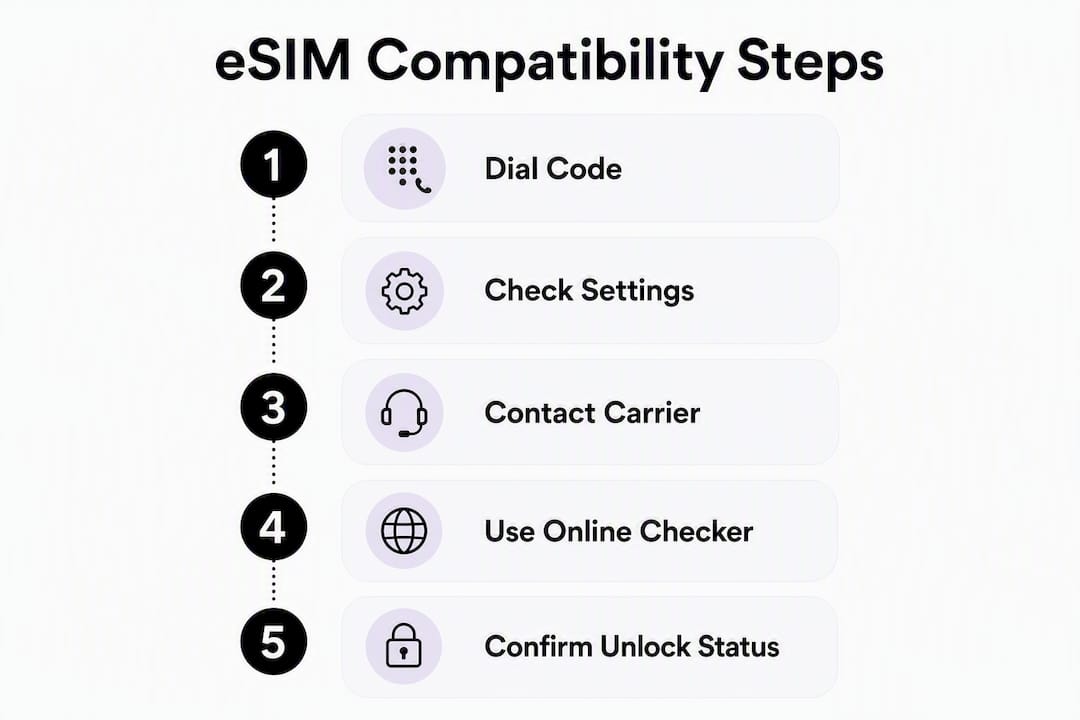
Your phone generally supports eSIM if it was made in recent years — but “almost certainly” is not good enough before you buy a plan. The fastest way to confirm is to open your dialler, type *#06#, and look at what appears on-screen. If you see a 32-digit number labelled EID alongside your IMEI, your device has an embedded SIM chip. That is the hardware confirmation you need.
Two quick checks to run right now:
- *Dial #06# and look for an EID (a 32-digit string beginning with 89). Its presence means the hardware is there.
- Check Settings for an “Add eSIM” or “Add Cellular Plan” option. On iPhone, go to Settings → Cellular. On Android, search Settings for “eSIM” or “SIM manager.”
One important caveat: hardware presence does not guarantee a working eSIM. Carrier locks, regional firmware variants, and MDM (Mobile Device Management) restrictions can all block activation even when an EID is visible. The sections below walk you through each check in order, so you can confirm every layer before spending money on a plan.
Pro Tip: Run both checks — the dial code and the Settings path — because some carriers suppress the EID from Settings while it still appears via the dial code.
Table of Contents
- How to check eSIM compatibility on any phone
- How to check eSIM on iPhone
- How to check eSIM on Android
- When should you use an online IMEI/EID checker?
- Why carrier locks and regional variants can block eSIM even when hardware exists
- Your phone shows eSIM hardware but plans won’t install
- What to confirm before buying a travel eSIM
- Key takeaways
- The check most people skip — and why it costs them
- Nordsecure’s tools for eSIM verification and anonymous connectivity
- Useful sources for model, carrier and regional verification
- FAQ
How to check eSIM compatibility on any phone
The universal method works regardless of brand or operating system. It relies on two identifiers that behave differently and are often confused.

IMEI vs EID — why the distinction matters
Your IMEI (International Mobile Equipment Identity) is a 15-digit number that identifies the physical handset. Every phone has one. Your EID (Embedded Identity Document) is a 32-digit number that identifies the embedded SIM chip itself. Not every phone has one. EID presence is the definitive hardware indicator — if it is there, the eSIM chip is physically soldered to the board.
Here is the step-by-step universal check:
- Open your phone’s dialler app.
- Type *#06# and wait (do not press call — it triggers automatically).
- A screen appears showing your IMEI. Look for a second number labelled EID.
- The EID is typically a 32-digit number and begins with 89.
- If EID appears: eSIM hardware is confirmed. Proceed to carrier and unlock checks.
- If only IMEI appears: your device likely has no eSIM chip, or the firmware is suppressing it — check Settings next before concluding.
When the dial code does not show an EID, open Settings and search for “eSIM,” “SIM manager,” or “Add mobile plan.” Some carrier-customised firmware hides the EID from the dial screen but still exposes the eSIM option in Settings. Regional firmware updates have also been known to add or remove eSIM visibility, so a device that showed nothing six months ago may behave differently after an OS update.
Pro Tip: Screenshot the EID and IMEI before contacting carrier support or purchasing any plan. Support agents will ask for both, and having them ready saves time.
How to check eSIM on iPhone
Every iPhone from the iPhone XS (2018) onward supports eSIM, with one significant exception: iPhones sold in mainland China typically ship with dual physical SIM trays and no eSIM hardware. Some Hong Kong variants also differ. If you bought your iPhone abroad or second-hand, the sales region matters.
Step-by-step iPhone check:
- Open Settings → Cellular (or Mobile Data on UK handsets).
- Look for Add eSIM or Add Cellular Plan. If present, eSIM is active and accessible.
- Alternatively, go to Settings → General → About.
- Scroll down to find EID — its presence confirms the hardware.
- On the same About screen, check Carrier Lock. The value “No SIM restrictions” means the device is unlocked and can accept third-party eSIMs.
Compatible iPhone models include:
- iPhone XS, XS Max, XR (2018)
- iPhone 11, 11 Pro, 11 Pro Max (2019)
- iPhone SE (2nd generation, 2020) and SE (3rd generation, 2022)
- iPhone 12, 13, 14, and 15 series (all variants except mainland China models)
- iPhone 16 series
The iPhone 14 and later models sold in the United States are eSIM-only with no physical SIM tray — a detail worth knowing if you are travelling with a US-purchased handset and need a local physical SIM as a backup.
How to check eSIM on Android
Android is more fragmented than iOS, and the Settings path varies by manufacturer. The underlying logic is the same: find the EID or locate an “Add eSIM” option. Even models listed as eSIM-capable may ship without eSIM in certain markets, so always verify on the device itself rather than relying on a spec sheet.
Settings paths by manufacturer:
- Samsung: Settings → Connections → SIM manager → Add eSIM
- Google Pixel: Settings → Network & Internet → SIMs → Download a SIM
- OnePlus: Settings → Mobile network → SIMs → Add eSIM
- Xiaomi / Oppo / Nothing: Settings → Mobile network or SIM & network → look for “eSIM” or “Add eSIM”
If you cannot find the option by navigating manually, use the Settings search bar and type “eSIM,” “SIM manager,” “Download SIM,” or “Add mobile plan.” One of those terms will surface the relevant menu on almost every Android build.
Compatible Android models (with regional caveats):
- Google Pixel 3a and newer — eSIM supported across most markets; Pixel 2 also supports eSIM on some carriers.
- Samsung Galaxy S20 and newer — eSIM available on most variants; some carrier-exclusive models in the US and certain Asian markets ship without it.
- OnePlus 12 and recent OnePlus flagships — eSIM supported; older OnePlus models generally do not have it.
- Xiaomi flagships (Mi 11 series onward) — eSIM present on global variants; China-market models typically omit it.
- Oppo Find X series and recent Reno flagships — global variants support eSIM; regional splits apply.
- Nothing Phone (2) and newer — eSIM supported on global models.
If Settings shows an eSIM option but activation fails, that is a separate problem covered in the troubleshooting section below. Hardware presence and successful activation are two different things.
When should you use an online IMEI/EID checker?
Browser-based compatibility checkers are useful as a second opinion, particularly for regional variant detection. They combine automatic device detection with a manual model database, which can flag known exceptions — for example, a Samsung Galaxy S21 sold in South Korea that ships without eSIM, or a China-variant iPhone that looks identical to a global model. Tools like eSIM Check and ESIMPY allow you to search by model name and see regional warnings that most spec lists omit.

That said, no browser-based tool can guarantee accuracy across every device variant. Auto-detection reads the browser’s user agent string, which can be spoofed or generic. A model lookup is only as current as the database behind it.
Before using any online checker:
- Prefer a model-name search over entering your IMEI or EID — it gives you the same regional information without exposing a device identifier.
- Check that the site uses HTTPS and has a clear privacy policy before entering any identifier.
- Use the checker to confirm what the device itself already showed you, not as a substitute for the on-device check.
- If you must enter an IMEI or EID, prefer tools from reputable providers or your own carrier’s portal, and clear site data afterwards.
Pro Tip: Nordsecure’s eSIM compatibility checker is built with minimal data collection in mind — it uses model-only detection where possible, so you are not handing over a device identifier to confirm something you can verify locally.
Why carrier locks and regional variants can block eSIM even when hardware exists
An EID in your Settings is necessary but not sufficient. Carrier-locked phones commonly block third-party eSIM installation even when the chip is physically present. The lock is a software restriction the carrier applies at the network level, and it prevents your device from accepting eSIM profiles from any provider other than the locking carrier.
How to confirm your device is unlocked:
- On iPhone: Settings → General → About → Carrier Lock. “No SIM restrictions” means unlocked.
- On Android: insert a SIM from a different UK carrier. If it connects normally, the device is unlocked.
- Contact your carrier with your IMEI and ask directly whether the device is unlocked and whether third-party eSIMs are permitted on your account.
- Check the device’s sales-region code (printed on the box or visible in Settings → General → About on iPhone). A region code can tell you whether the model was built with eSIM hardware.
Regional traps to know about:
- Mainland China iPhones ship with dual physical SIMs and no eSIM chip — the hardware simply is not there.
- Some Samsung and Xiaomi models sold in China, Hong Kong, and certain Asian markets omit eSIM even when the global variant includes it.
- A few US carrier-exclusive Android models (particularly older Samsung units) were built without eSIM to satisfy carrier requirements at the time.
In the UK, the major carriers — EE, O2, Vodafone, and Three — are required to unlock devices once the contract or device finance agreement is complete. You can request an unlock through the carrier’s website or customer service. Processing typically takes up to 10 working days, though many carriers complete it faster.
Your phone shows eSIM hardware but plans won’t install
Work through this in order. Skipping steps wastes time.
- Confirm EID is present via *#06# or Settings. If it is missing, the hardware may not exist or firmware is suppressing it.
- Confirm the device is unlocked using the carrier lock check above.
- Update your OS and carrier settings. Some manufacturers issued firmware updates that exposed eSIM functionality on older models — a pending update may be the entire problem. On iPhone, also go to Settings → General → About and accept any carrier settings update.
- Remove existing eSIM profiles. Most devices support a limited number of stored eSIM profiles. A full profile store can block new installations.
- Try a different eSIM provider or QR code. A corrupted QR code or a provider outage can mimic a device incompatibility.
- Check for MDM restrictions. On iPhone, go to Settings → General → VPN & Device Management. If a management profile is installed, it may be blocking eSIM provisioning. Contact your employer or device administrator to request removal or an exemption.
When calling carrier or vendor support, have ready:
- Your IMEI and EID (both)
- The device model and purchase region
- Your current carrier and account number
- The specific error message or behaviour you are seeing
Ask explicitly: “Is my account provisioned for third-party eSIM activation?” and “Is there a carrier-side block on eSIM for this IMEI?” Those two questions cut through most support scripts quickly.
Pro Tip: If a carrier insists your device is incompatible despite a visible EID, ask them to check the IMEI against their eSIM whitelist. Some carriers maintain separate approval lists and the front-line agent may not know to check it.
What to confirm before buying a travel eSIM
A failed eSIM installation at the airport is an avoidable problem. Run this checklist before purchasing any travel plan.
- Hardware confirmed: EID visible via *#06# or Settings.
- Device unlocked: Carrier Lock shows “No SIM restrictions” (iPhone) or cross-SIM test passed (Android).
- Regional variant verified: Confirm the model was not sold in a market that omits eSIM.
- Provider covers your destination: Check the provider’s country list before buying. Nordsecure’s regional eSIM plans cover 170+ countries and list supported destinations clearly.
- APN and activation steps noted: Some providers require manual APN configuration or a specific activation window. Read the provider’s setup instructions before you travel, not at the destination.
- VoIP and SMS support checked: Data-only eSIMs are common; if you need calls or texts, confirm the plan includes them.
Pro Tip: Buy a short, low-cost test plan for your first destination before committing to a larger bundle. A successful installation on a £3–£5 day pass confirms everything is working before you spend more.
Key takeaways
The fastest way to verify eSIM support is to dial *#06# and look for a 32-digit EID — its presence confirms the hardware, and a “No SIM restrictions” carrier lock status confirms you can use it freely.
| Point | Details |
|---|---|
| Universal dial check | Dial *#06# and look for an EID (32 digits, starts with 89) — the definitive hardware test. |
| Settings confirmation | On iPhone: Settings → General → About. On Android: search Settings for “eSIM” or “SIM manager.” |
| Carrier lock matters | An EID alone is not enough — confirm “No SIM restrictions” or pass a cross-SIM test before buying a plan. |
| Regional variants | Mainland China iPhones and some Asian Android models ship without eSIM hardware even when the global version has it. |
| Nordsecure tools | Nordsecure’s eSIM compatibility checker uses model-only detection to verify support without exposing your device identifiers. |
The check most people skip — and why it costs them
Most guides stop at “does your phone have an EID?” That is the right starting point, but it is not the whole picture. The real failure mode — the one that catches travellers at the airport and privacy-conscious users mid-setup — is assuming that hardware presence equals usable eSIM.
Carrier locks are the most common culprit, and they are invisible until you try to install a profile. Regional variants are the second. A phone bought in China, even an iPhone, may look identical to a UK model in every external respect and still have no eSIM chip inside. The spec sheet will not tell you. The retailer may not know. Only the *#06# dial code or the About screen will.
There is also a subtler issue that rarely gets discussed: MDM locks on corporate devices. Many people carry work phones without realising that a management profile installed by their employer actively blocks eSIM provisioning. The device is unlocked, the EID is present, the carrier supports eSIM — and it still will not install. The fix requires a conversation with IT, not a new plan.
The verification process outlined here takes under two minutes. Skipping it and buying a plan first can mean a wasted purchase and a support queue. The checks are worth doing in order, every time.
Nordsecure’s tools for eSIM verification and anonymous connectivity
Verifying compatibility is one problem. Finding an eSIM that respects your privacy is another. Most eSIM providers require account registration, email verification, and sometimes payment details tied to your identity. Nordsecure’s anonymous eSIM service covers 170+ countries with no ID, no KYC, and no account required — you pay, you get a QR code, you install it.

Before you buy, use Nordsecure’s free eSIM compatibility checker to confirm your device and region are supported. It uses model-level detection rather than collecting your IMEI or EID, keeping the verification itself private. For readers who want a device that is ready for anonymous eSIM use from the moment it arrives, Nordsecure also ships privacy-hardened Pixel phones with GrapheneOS pre-installed — no Google account, no telemetry, and verified-boot re-locked. Check the GrapheneOS compatibility checker to see whether your current device qualifies, or browse the full phone range to find one that ships ready to use.
Useful sources for model, carrier and regional verification
- Nordsecure eSIM compatibility checker — privacy-first model detection tool for confirming eSIM support before purchase.
- Nordsecure privacy tools — full suite of free verification tools including eSIM and device checks.
FAQ
How do I check if my phone supports eSIM?
Dial *#06# on your phone and look for a 32-digit EID alongside your IMEI. If an EID appears, your device has eSIM hardware. You can also check Settings: on iPhone go to Settings → General → About; on Android search Settings for “eSIM” or “SIM manager.”
What is the oldest iPhone that supports eSIM?
The iPhone XS and iPhone XR, both released in 2018, are the earliest iPhones with eSIM support. All iPhone models released since then support eSIM, with the exception of models sold in mainland China, which typically use dual physical SIM trays instead.
Why is my eSIM not working even though my phone shows an EID?
The most common causes are a carrier lock (check Settings → General → About → Carrier Lock on iPhone), an MDM management profile blocking provisioning, or an outdated OS or carrier settings. Work through the troubleshooting checklist: confirm the device is unlocked, update the OS and carrier settings, remove any existing eSIM profiles, and then try again.
Which Android phones are eSIM-compatible?
Google Pixel 3a and newer, Samsung Galaxy S20 and newer, OnePlus 12 and recent OnePlus flagships, and recent Xiaomi, Oppo, and Nothing flagships all support eSIM on their global variants. Regional models sold in China and some Asian markets may omit eSIM hardware even when the global version includes it, so always verify on the device itself.
Is it safe to enter my IMEI or EID into an online checker?
Prefer a model-name search over entering device identifiers where possible — it returns the same regional information without exposing your IMEI or EID. If you must use an identifier, choose a tool with a clear privacy policy and HTTPS, and clear site data afterwards. Nordsecure’s compatibility checker uses model-level detection to avoid collecting device identifiers.
Recommended
Written by
The NordSecure team · Privacy & security
Written by the people who flash, harden and support the devices and private connectivity NordSecure sells — so what you read here comes from the same hands that build the product.
Read next

5 Immediate Changes for SIM Swap Protection That Stop Attackers
Stop SIM swap attacks: lock your carrier with a unique PIN, replace SMS MFA with an authenticator or hardware key, and consider an anonymous eSIM. Share this: Share on X (Opens in new window) X Share on Facebook (Opens in new window)…

Privacy First Android: 4 Safe Ways to Install Apps Without Google
Four privacy first ways to install Android apps without Google, with APK verification steps and a GrapheneOS alternative. Share this: Share on X (Opens in new window) X Share on Facebook (Opens in new window) Facebook

Install Sandboxed Play on GrapheneOS in 6 Steps Without Losing Privacy
Threat model first steps to install and confine Sandboxed Play on GrapheneOS. Covers profile isolation, anonymous accounts, and permission hardening. Share this: Share on X (Opens in new window) X Share on Facebook (Opens in new window)…
Ready for a phone that's private by default?
Skip the setup — we flash, harden, and verified-boot re-lock it for you. Travelling instead? Grab an anonymous data eSIM.